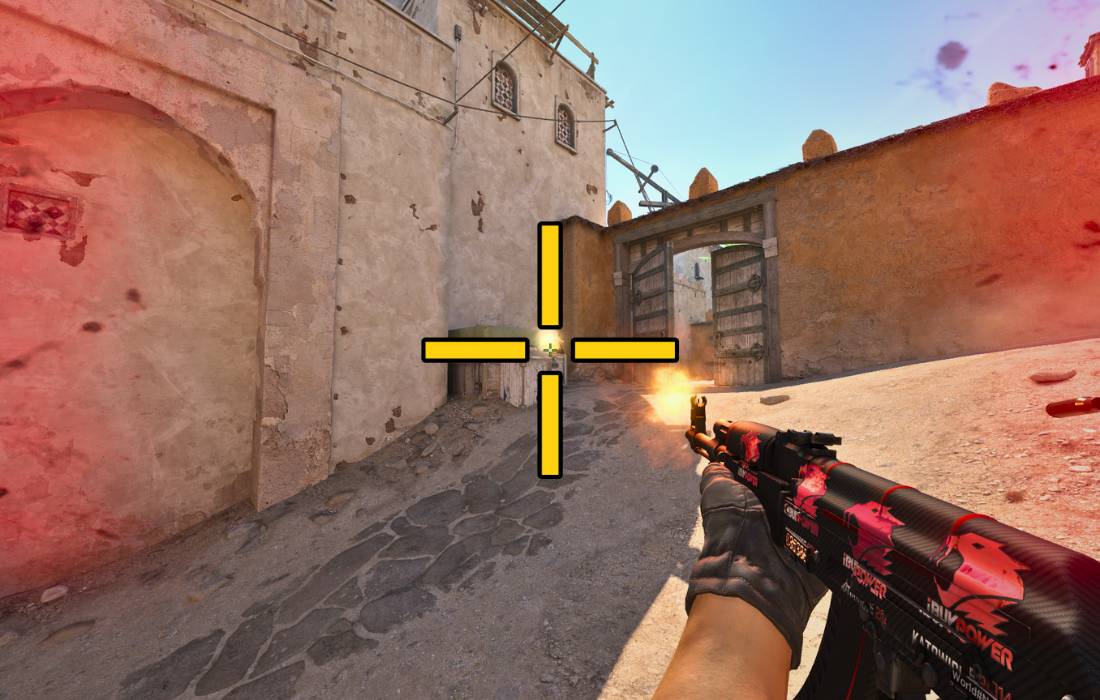
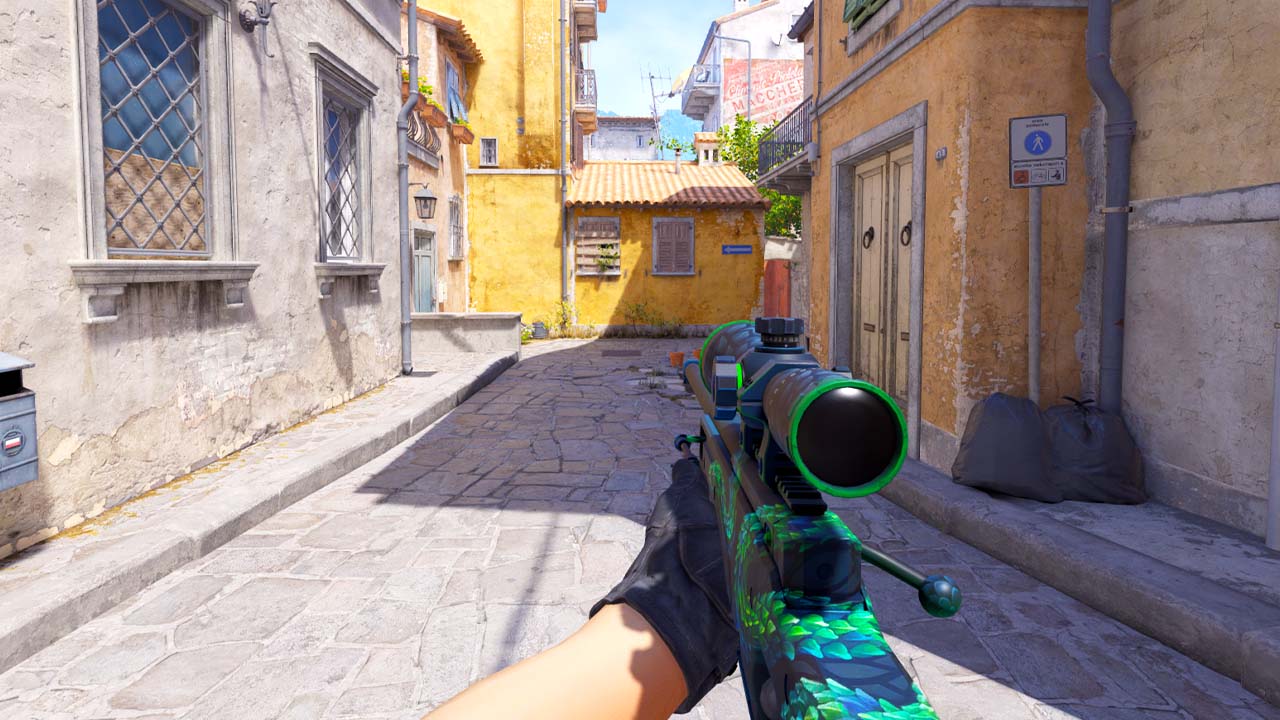
One of the easiest ways to upgrade your Counter-Strike experience is by adjusting your viewmodel. Even small tweaks can make a big difference in how you play.
The viewmodel is basically how your weapon and hands appear on the screen. Change it, and you might find it easier to spot enemies, throw grenades, or just play more comfortably.
In this guide, we’ll walk you through everything you need to know about CS2 viewmodel commands—what they do and how to find the best settings that fits your style.
Why Change Your CS2 Viewmodel?
There’s more to the viewmodel than just looks. Here’s why changing your CS2 viewmodel might actually help you play better:
Better visibility: When your weapon takes up less space, you see more of the map and spot enemies more easily.
Less distraction: Moving your gun out of the way keeps your crosshair clear and helps you stay focused during gunfights.
More comfort: The right setup feels easier on your eyes and matches how you like to play.
All CS2 Viewmodel Commands Explained
Here’s a breakdown of all the important CS2 viewmodel commands and what they do. You can change these through the console to fine-tune exactly how your weapon and hands appear on the screen.
viewmodel_offset_x [-2.5 to 2.5]
This command moves your weapon left or right on your screen.
2.5 is far left, 2.5 is far right. Most players go for the far edge to free up space in the middle.
viewmodel_offset_y [-2 to 2]
This command pushes your weapon forward or pulls it back.
-2 is closest to you, 2 is furthest away. If you want your gun barely in view, set this higher.
viewmodel_offset_z [-2 to 2]
This command moves your weapon up or down.
-2 puts it lower, 2 puts it higher.
viewmodel_fov [54 to 68]
This command controls how zoomed in your weapon model looks.
Higher FOV = weapon is smaller and takes up less space. Most people go for 68 for max visibility.
viewmodel_presetpos [1, 2, or 3]
This command is a fast way to pick a preset.
1 = desktop (centered, classic)
2 = couch (for those who sit further away)
3 = classic (CS:GO style)
How to Find Your Best Viewmodel Settings
Finding the right viewmodel in CS2 is a personal thing—what works for one player might feel completely off for someone else. The goal is to test different setups until you land on something that feels comfortable, clear, and helps you focus on the action instead of your weapon.
A great way to get started is by looking at what the pros are using. Many professional CS2 players have already fine-tuned their viewmodel settings for maximum visibility and comfort. You can simply copy their settings as a starting point, and then tweak things from there to match your own preferences.
Here are two popular pro player setups you can try out.
donk viewmodel settings
viewmodel_offset_x 2.5
viewmodel_offset_y 0
viewmodel_offset_z -1.5
viewmodel_fov 68
viewmodel_presetpos 2
NiKo viewmodel settings
viewmodel_offset_x 1
viewmodel_offset_y 2
viewmodel_offset_z -1.5
viewmodel_fov 64
viewmodel_presetpos 3
FAQS
The viewmodel is how your weapon and hands appear on your screen while playing. Changing it only affects what you see, not how the gun performs.
The viewmodel don’t impact your weapon’s stats or recoil, but a good viewmodel can improve your visibility and limit distractions, making it easier to spot enemies and track your crosshair.
Enable the developer console in your game settings, then open it (default key: ~) and enter the viewmodel commands you want to test.
Yes, use the viewmodel_presetpos command with 1, 2, or 3 to quickly return to one of the default preset positions.
Yes, and many players do! Copy setups from pros like donk or NiKo as a starting point, then adjust to fit your own preferences.
There’s no such thing as the best viewmodel settings, but most players use higher FOV (like 68), and offset values that push the weapon out of the way.