Why Your Crosshair Matters in CS2
In Counter Strike, your crosshair isn’t just a visual detail—it’s one of the most important tools you have. It’s what your eyes follow every time you aim, flick, or take a shot. A good crosshair can make your aim feel sharper, improve your reaction time, and help you stay consistent under pressure.
This guide covers everything you need to know about customizing your crosshair in CS2. We’ll show you how to change it, explain the different styles, help you pick the best colors and settings, and even share how to use pro player setups as a starting point.
By the end, you’ll have all the tools needed to create a crosshair setup that perfectly aligns with your playstyle and maximizes your competitive performance.
How to Change Your Crosshair in CS2
Changing your crosshair in CS2 is straightforward and can be accomplished through the game’s built-in settings menu or by using console commands. For most players, the settings menu offers intuitive, visual options to adjust the size, color, and style without needing to know any commands.
For those seeking more detailed customization, the developer console enables precise adjustments via specific commands. This advanced method is particularly useful if you want to replicate exact crosshair settings quickly, experiment with variations, or copy pro player configurations.
Use the Share or Import Feature
To make things easier, CS2 includes a built-in Share or Import feature that lets you instantly apply any crosshair configuration using a simple code, completely bypassing the need for manual tweaks or console commands.

Choose the Right Crosshair Style
One of the first decisions when customizing your crosshair is choosing the right style. Here, CS2 offers various style options, each impacting your aiming experience in unique ways.
If you’re using the in-game settings menu, you’ll find three main styles to choose from: Classic, Classic Static, and Legacy. These are designed to be simple and intuitive. Classic gives you a dynamic crosshair that reacts to movement and shooting, making it useful for learning accuracy and timing for each weapon. Classic Static keeps the crosshair completely still, even while moving or shooting. Legacy also offers a dynamic look, but with a slightly different visual behavior compared to the Classic version.
Advanced Crosshair Styles via Console
Behind the scenes, CS2 supports more detailed styles through a console command called cl_crosshairstyle. This command allows for a total of 6 variations that aren’t directly labeled in the menu. Advanced players can use it to fine-tune their crosshair’s behavior, choosing between slightly different dynamic modes or classic legacy visuals with fake recoil feedback. While most players won’t need to use these command options, they’re still useful if you want to experiment further.
In the end, the best crosshair style is the one that matches your experience level and personal preference. Most players prefer a static crosshair for the consistency it brings, while newer players often benefit from the visual cues a dynamic crosshair provides.
Pick The Best Crosshair Colors
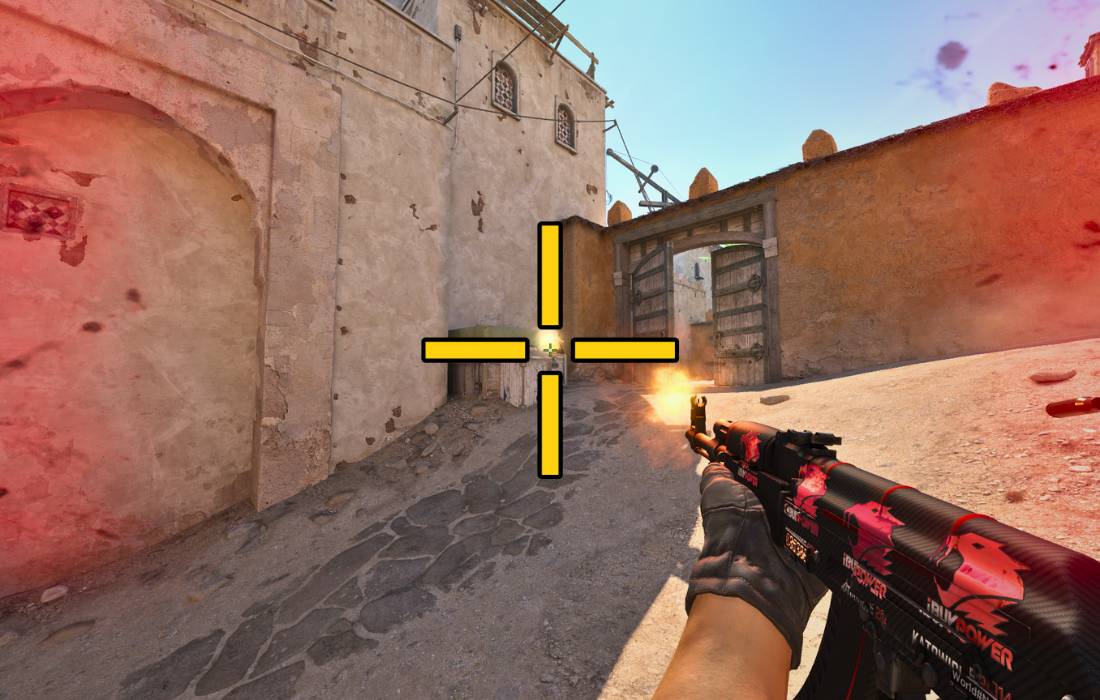
Your crosshair color directly affects how clearly you can see and track your aim, especially in chaotic firefights. Choosing the correct color is essential to maintain visibility across different maps, lighting conditions, and visual effects. Popular choices among players include green, cyan, and pink as they typically contrast effectively against various backgrounds and enemy models. However, in CS2, you can fully customize your color using RGB values, giving you endless possibilities to find exactly what feels best for you.
Other elements, like a thin, dark outline or adjusting the transparency (alpha), can help your crosshair stay visible in bright or cluttered environments. Experimenting with these options ensures your crosshair stays clear without distracting from your targets.

Tweak Your Crosshair Settings in CS2
Adjusting the finer details of your crosshair settings can noticeably improve your aim and shooting consistency. The main settings you’ll want to experiment with are size, thickness, gap, outline, and transparency.
The size setting controls how large your crosshair appears. Smaller crosshairs help with precise aiming at long distances, while larger crosshairs provide quicker visual reference
Thickness makes your crosshair easier to see clearly, especially during rapid movements, while the gap setting controls the spacing between the crosshair lines. A smaller gap can help with pinpoint accuracy, while a slightly wider gap might feel more comfortable for visibility around corners or angles.
Adding an outline ensures your crosshair remains visible across different backgrounds, and adjusting the transparency (alpha) makes sure the crosshair is clear but doesn’t obscure your view of the target.
The perfect crosshair setup varies by player, so take the time to test and tweak these settings until you find what feels best for your style.
Explore each setting in detail
Maximize Your Aim With Good Crosshair Placement
Good crosshair placement is just as critical as customizing the way it looks. The most important habit to develop is keeping your crosshair at head-level. By doing this, you minimize the amount of movement needed to hit accurate shots.
Another crucial skill is learning to pre-aim common angles. Experienced players anticipate where opponents most likely appear and keep their crosshair ready at those positions. Developing these habits cuts down your reaction time dramatically, makes your aim smoother, and increases your chances of landing important headshots fast.
The more intentional and controlled your crosshair movement is, the faster and more accurately you’ll be able to respond during intense firefights.

Copy Pro Player Crosshair Codes
Starting your customization process with professional players’ crosshair codes can be beneficial. Professional players spend countless hours refining their crosshair setups, finding optimal configurations for visibility, precision, and overall comfort.
A smart way to begin customizing your crosshair is to borrow settings from professional players. Pros spend countless hours fine-tuning their setups, finding optimal configurations for visibility, precision, and comfort.
CS2 makes this process easy by letting you quickly import crosshair configurations through short, simple codes. Popular pros like s1mple, ZywOo, NiKo, and m0NESY offer excellent starting points, proven to be effective at the highest competitive levels. Using these codes can significantly boost your gameplay, especially if you’re new to customization or unsure about where to start.
Just remember, pro setups should be a starting point, not your final setup. Don’t hesitate to tweak settings slightly to better fit your monitor size, resolution, and personal preference.
Try the best crosshair codes used by pro players
Conclusion
Your crosshair in CS2 isn’t just something to look at—it’s one of your most important tools that shapes your aiming mechanics and significantly impacts your in-game performance. By choosing the right style, color, and settings, and by practicing solid crosshair placement habits, you’ll quickly notice that your accuracy and performance improve.
Don’t be afraid to experiment. Test different pro-player setups, tweak the settings to your liking, and find a configuration that feels comfortable and consistent. Even small adjustments can lead to meaningful improvements over time.
Take advantage of the tips and resources in this guide, and keep refining your setup until it perfectly matches your playstyle. Good luck—and have fun customizing!
Frequently Asked Questions
How can I import a pro player’s crosshair?
You can easily import a pro’s crosshair by using a short code in CS2’s built-in “Share or Import” feature located in the Crosshair settings.
Should I use a static or dynamic crosshair?
If you’re looking for consistency and precise aiming, static crosshairs are ideal. If you’re newer or learning spray control, dynamic crosshairs provide helpful feedback.
What is the best crosshair color in CS2?
Green and cyan are great all-round options, but pink and yellow are also popular among players seeking better visibility on brighter maps.
What crosshair settings do most professional players use?
Pro players generally prefer smaller crosshairs, thin lines, and a small gap for maximum precision and visibility.
Is a smaller crosshair always better?
Not necessarily. Smaller crosshairs aid precision at long distances, but beginners or players preferring quick visual cues might find a slightly larger crosshair more comfortable.
What is good crosshair placement in CS2?
Good crosshair placement means always aiming at head-level and pre-aiming common spots where opponents usually appear. This improves your reaction time and accuracy.
Can I change crosshair settings mid-game?
Yes! You can switch crosshair setups anytime by binding commands to keys or quickly importing new crosshair codes in the settings menu.
Does crosshair color or style affect FPS performance?
No, changing your crosshair does not noticeably affect FPS performance.