How You Get a Custom Crosshair in CS2
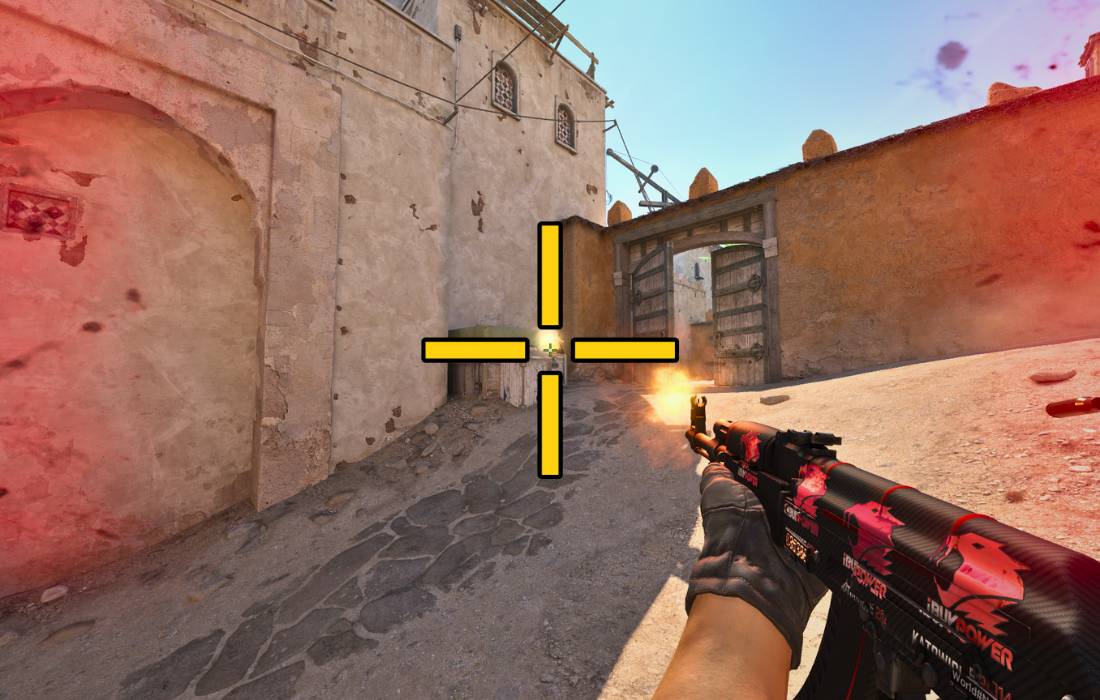
Customizing your crosshair in CS2 is a quick and effective way to improve how you aim. You can easily adjust it for better precision, visibility, or just to match your personal style.
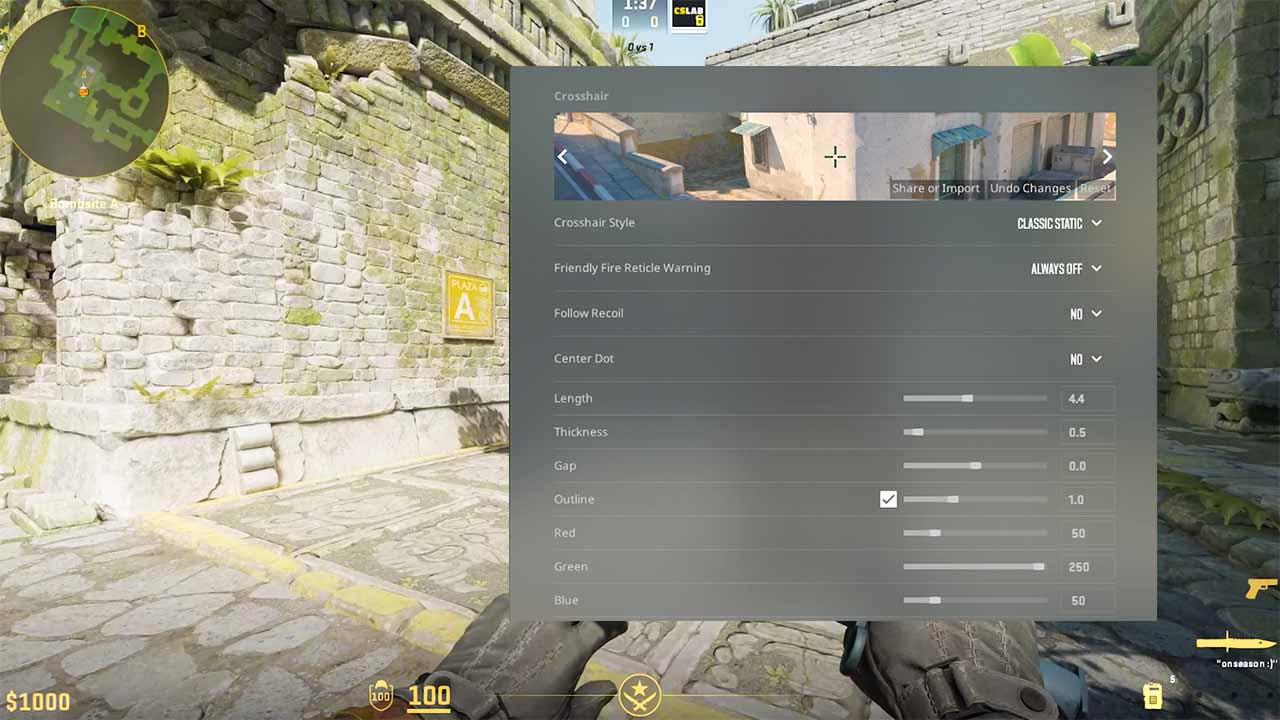
You don’t need any special software or complicated setups to customize your crosshair; just follow these easy steps:
Open CS2 and go to the Main Menu.
Click on Settings (the gear icon in the top-left corner).
Select the “Game” tab, then choose “Crosshair”.
Want full control over your CS2 crosshair? This in-depth guide has everything you need to know.
Crosshair Settings You Can Customize
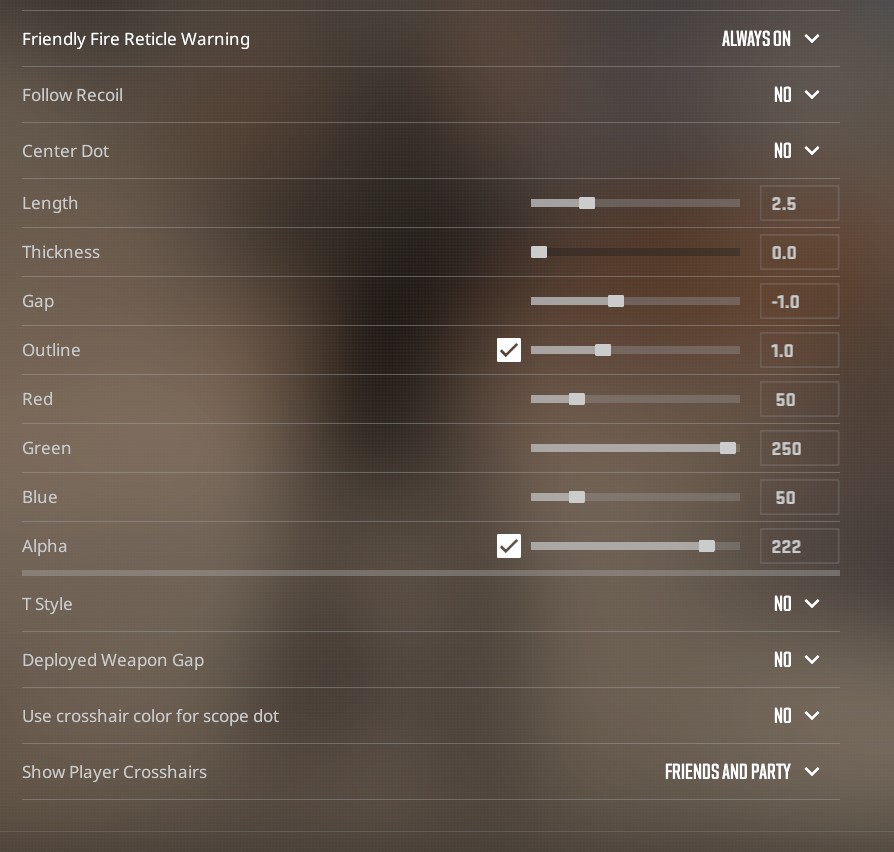
Follow Recoil
When enabled, your crosshair will move to match your weapon’s recoil pattern. This can help newer players understand how bullet spread works, but most experienced players keep it off for a cleaner look.
Center Dot
Adds a small dot in the middle of your crosshair. This is useful for precise shots, especially when using pistols or rifles at long distances. Turn this on if you prefer a fixed aim point instead of open space in the center.
Length
Controls how long the crosshair lines are. Shorter lines can feel more minimalistic, while longer lines offer better visibility across your screen.
Thickness
Adjusts how thick or bold the lines appear. Thicker lines are easier to see during fast mouse movement. Thin lines look clean but might disappear in certain lighting.
Gap
Changes the spacing between the crosshair lines. A smaller gap makes the center tighter for precision; a wider gap opens up visibility around your target.
Outline
Adds a dark border around your crosshair lines. This helps the crosshair stand out on bright or cluttered backgrounds, improving visibility.
Red / Green / Blue
These sliders let you customize the crosshair color using RGB values. You can create any color you want—just make sure it contrasts well with the game’s environments.
Alpha
Controls the transparency of your crosshair. Lower values make the crosshair more see-through.
T Style
Removes the top arm of your crosshair, creating a “T” shape. This can improve visibility at head level and is preferred by some riflers.
Deployed Weapon Gap
When enabled, your crosshair will slightly shift or expand depending on which weapon you’re holding. Most players keep this off for consistency.
Use Crosshair Color for Scope Dot
When scoped in with certain weapons (like the AUG or SG 553), this setting controls whether the dot in the middle of the scope uses your crosshair color. Nice for visual consistency if you’re using a bright custom color.
Show Player Crosshairs
Lets you see your teammates’ crosshairs in-game. You can set it to “Off,” “Friends and Party,” or “Everyone.” Helpful if you’re testing setups with teammates or copying styles.
How to change the crosshair to a dot
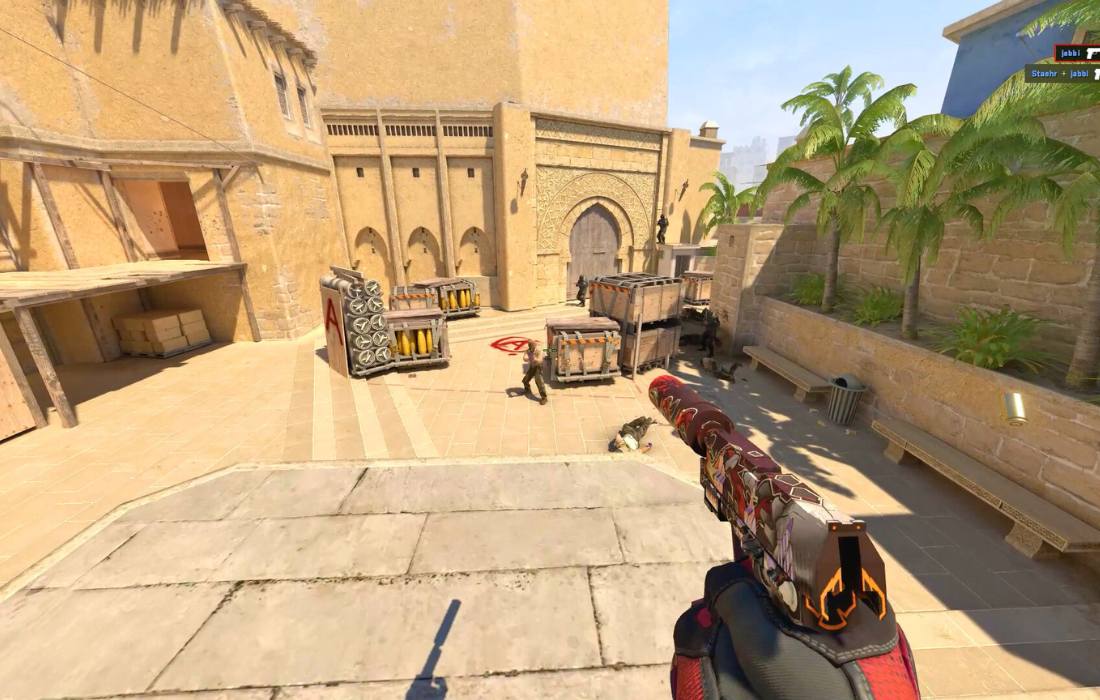
If you prefer a simple dot for precise aiming, you can easily set that up too. All you have to do is adjust the length to zero and turn on the “Center Dot” option.
How to Copy, Paste, and Import Your Crosshair
Sharing or using someone else’s crosshair setup is incredibly easy, and it’s one of the fastest ways to find something that feels just right. Trying out different setups can give you a better sense of what improves your aim, feels comfortable, or simply looks better on your screen. CS2 makes the process quick and straightforward, so you can test, tweak, and switch anytime.
Go to Settings → Game → Crosshair.
Click “Share or Import” at the top-right corner.
To copy your own crosshair, simply click “Copy your code”. This will copy a unique code to your clipboard.
To import someone else’s crosshair, paste their code into the provided field and click “Import”.

Frequently Asked Questions
How do I get a custom crosshair in CS2?
Navigate to Settings → Game → Crosshair, and adjust options like color, size, and style.
How do I change my crosshair to a dot in CS2?
Select a small crosshair size and enable the “Center Dot” option in your crosshair settings.
How do I copy and paste a crosshair in CS2?
Click on “Share or Import” in the Crosshair settings, then use the “Copy your code” feature or paste someone else’s code into the import box.
How do I import my crosshair?
Paste your saved crosshair code into the “Share or Import” section of the Crosshair settings and click “Import”.